|
Basic
Course in Special Effects and Game Programming in Java™
by
Aníbal Wainstein
Chapter
3
Threads and animation
Last
updated 1999-05-24
CONTENTS
3.0
The theory behind program threads
Multiple
program threads were introduced to PC programming with the release
of Windows 95. Operating systems such as UNIX have had this for
a long time. A thread works like a "little worker" working
with the program code. If you have several programs running in your
system, then there is at least one thread for each program. Some
programs may have several threads, for instance a web browser that
supports Java. To be able to have animated Java applets we are forced
to use two threads. First there is the program or main thread, which
is the Java Virtual Machines own thread. This is used for
the so-called event system, which handles user input such as mouse
pointer movements and keyboard events. In the last chapter we had
only worked with the main thread. The problem with animations is
that they often requires that you have a thread that is constantly
working with the animation code. We cannot use the main thread because
then the applet's other functions will stop working, the applet
hangs. A program that hangs, usually does that because the
main thread gets stuck in an program loop and cannot get free, or
that it collides with another thread and stops. Assume that two
web designers are working with a homepage. If they do not decide
who is going to do what, then they will probably end up writing
each other work. This leads to agression, the cooperation breaks
down and with that also the project. In the same way you must be
careful when using threads.
3.0.1
An applet's start() and stop() methods (The Runnable interface)
Applets
have no natural support for threads. You add thread support by adding
the Runnable interface :
import java.applet.*;

import java.awt.*;
public class threadtest extends Applet implements Runnable {

}
In
our empty threadtest applet we have added "implements Runnable".
With the declaration "implements" you can add several
new functions to a class. It is used to increase the class' abilities.
"Runnable" will give access to three new methods: start(), stop()
and run(). In an applet that supports threads the methods init()
and paint() are first called by the Java Virtual Machine's main
thread, the third method called by this thread is the start()
method.
In the start() method you can initialize and start your animation
thread.
public Thread programthread = null;
public void start()

{

    if (animationthread == null)

    {

         animationthread = new Thread(this,"animationthread");

         animationthread.start();

    }

}
The variable
"animationthread" is a global variable within the applet and you must
declare it yourself. What the start() method does first is that it
checks that the thread is not already created (sometimes some web
browsers can execute the start() method several times). The next step
is to create the thread itself. It demands a reference to your applet
(this) and a name that could be anything (we call it "animationthread"
for the sake of simplicity). After this you start the thread with
its own start() method.
When the homepage visitor changes the page or shut down the web browser,
then the stop() methods is immediately called by the applet's main
thread:
public void stop()

{

    if ((animationthread != null) && animationthread.isAlive())

        animationthread.stop();

    animationthread = null;

}
For security
reasons you should make sure that the thread is created and that it
is running with the method isAlive(). If it is then the thread is
stopped with it's own stop() method and we set the variable "animationthread"
to the value null.
You
will probably always just cut and paste these two methods into your
programs in the future. They are general methods that all the special
effects or game applets have.
3.0.2
The run() method
In
contrast to the start() and stop() methods, the run() method will
always be different from applet to applet. This methods is always
called by your self-created thread. This means that you have
a thread that works with the applets other methods (the main thread)
and a thread that works with the run() method (your own thread that
you initialize in the start() method). By "holding" the
thread in the run() method with a loop, you can exploit it to do
work that will not hang the JVM:
public void run()

{

    while (true)

    {


    }

}
In the
example above we are holding the thread within the loop forever (or
until the applet's stop() method is called). The problem with the
applet that we made in chapter 2.0.4,
was that it was overwritten by other status messages from the web
browser. Threads can help us here, because they constantly manage
to update a message on the status window, and by doing so, overwriting
other web browser messages. Let us rewrite the applet:
import java.applet.*;

import java.awt.*;


public class threadtest extends Applet implements Runnable {


public Thread animationthread = null;


public void start()

{

    if (animationthread == null)

    {

         animationthread = new Thread(this,"animationthread");

         animationthread.start();

    }

}


public void stop()

{

    if ((animationthread != null) && animationthread.isAlive())

        animationthread.stop();

    animationthread = null;

}


public void run()

{

    while (true)

    {

        showStatus("Hello Sweden!");

    }

}

}
Compile
the applet and run it. You can also click
here to see it. You will notice that the message "Hello Sweden!"
is being displayed in the status window of your browser.
3.0.3
Exceptions, static classes and how to put a thread to sleep
You
may have notice that the applet in the last section was very processor
intensive. Maybe it is not necessary to update "Hello Sweden!"
every millisecond, it is enough doing that once per second or less.
We must now put a delay in the run() method's loop. With the method
sleep(), which exist in the Thread class, we can get the thread
to "sleep" a number of milliseconds. This method is a
so-called static method. A method of this type may be called without
having to create an instance of the class (in other words, without
having to create an object, based on that class). So you can simply
write:
Thread.sleep(1000);
Now
the thread will sleep for exactly 1000 milliseconds (which is exactly
one second). Static classes can be useful sometimes if you happen
to have a very useful function in a class that you use a lot. Then
it can be a good idea top make the function static and to be able
to save some memory by not having to allocate memory for a new object.
The memory that is required for a static method is allocated first
when the Java VM encounters the class where the static method is.
All the future objects created and based on that class will always
use the same memory cell where the static method exist.
There
is something that you must consider. Static methods cannot work
with non-static variables in the same class. However, this is not
true if the variables are also static. Why, do you ask? Because
you have not allocated memory for these variables (created a new
object). They simply do not exist when the static function is called!
The effect of using static variables is that if you have
several objects based on the same class, then they will all share
the same variable. That means that if a static variable is manipulated
in one object then the content of the other statical variables in
the other objects are also changed.
Now
you probably think that you can use this method freely and put it
in your loop. No, I am sorry, we are not quite there yet. The problem
with the sleep() method is that it throws an exception that
you must catch. Exceptions are used in Java by methods to
tell to the class calling them that something went wrong. In this
case another thread may interrupt the sleeping process. You
must know what happened and therefore the function throws an exception.
This is of more bother than use, because if you do not catch the
exception, then the applet is stopped, or as in some cases, the
compiler will simply not accept it. First, you place the method
in a try-loop and then you catch its exception in a catch
statement:
try

{

    Thread.sleep(1000);

}

catch (InterruptedException e)

{

    System.out.println("Something interrupted the sleep() method")

}
The
catch loop requires an argument which must be an exception class.
The interruption class is named InterruptedException and it is thrown
by sleep(). There are many types of exceptions, and all are subclasses
to the Exception class. Other well known exceptions are NullPointerException
(appears when you have tried to use a null reference), ArrayIndexOutOfBoundsException
(appears when you have specified a negative or too high index on
an array) and IOException (an error occurred when reading a file).
To make our "effect" more interesting, we remake the run()
method in the last section:
public void run()

{

    while (true)

    {

        showStatus("Long");

        try {Thread.sleep(1000);}

        catch(InterruptedException e) {}

        showStatus("Live");

        try {Thread.sleep(1000);}

        catch(InterruptedException e) {}

        showStatus("Java!");

        try {Thread.sleep(1000);}

        catch(InterruptedException e) {}

    }

}
In order
to make the code more easy to read, I have written the pause code
on two lines and removed the println() message, because it is not
very interesting in this case to know if another thread interrupts
the waiting process. Can you guess what will happen now? First, the
message "Long" is written to the status window, then the
thread will wait one second and then "Live" will be written,
after another second, the string "Java!" is written. One
second later, the program will start over again.
Click
here and you will see.
Now
you will also notice that your computer is not working so hard compared
with the other example.
3.1
Other examples with showStatus()
Status
window effects are often used among web designers today. Thanks
to our new knowledge in threads, we can begin making some status
window animations.
3.1.1
Your first scroller (statusscroller)
I remember
that the first applet I programmed was an applet called URLScroll.
It was one of the most common effects at that time, and they usually
were a text message that moved from right to left or upwards. We
reviewed in section 1.4.1
how to get a substring from a larger string. Start by opening the
old threadtest.java file and save a copy under another name ("statusscroller"
for instance). Now we add an init() method where the message will
be initialized:
public String message;


public void init()

{

    message="                              ";
    message+="                              ";
    message+="                              ";
    message+="                              ";
    message+="Anibal Wainstein's Basic Course ";
    message+="in Special Effects and Game development in Java(TM)";}
First
we declare a global variable called "message". This will
contain the actual message that we will write. We start by initializing
the variable with a blankspace line and then by adding more subsequent
blankspace lines. The message is added at the end of these lines.
If you are confused by the way I am creating the message then you
should know that:
message="message 1 ";

message+="message 2";
is the
same thing as
message="message 1 " + "message 2";
The idea
with our scroller is that we crop the string and show shorter and
shorter bits on the status window until there is nothing left to show.
Rewrite the run() method in the old applet:
public void run()

{

    while (true)

    {

        int L=message.length();

        for (int i=0; i<L; i++)

        {

            showStatus(message.substring(i,L));

            try {Thread.sleep(100);}

            catch(InterruptedException e) {}

        }

    }

}
Here,
we start by first finding out the length of our string, with the help
of the String class' length() method, the result is stored in the
variable "L". The for-loop will count up from position 0
in the string, to the end of the message. Substring() can then take
the part of the string that begins on this position and ends at the
end of the string, that is the "L" position. We add a pause
of one tenth of a second (100 milliseconds) after displaying the string.
When the string has been cropped to the end, then the whole process
start again, thanks to us having contained the code within the infinite
while loop.
Take a look at the finished statusscroller by clicking
here .
3.1.2
A computer terminal in your status window (statusdatatext)
Computer
terminals in the beginning of the 80's were very sluggish and had
a special way to write
out sentences. Here, we shall try to simulate that effect, but on
the status window and with only one sentence.
Do
a copy of the previous Java file and rewrite the init() method to
the following code:
public void init()

{

    message="Preparing to launch....";

    message+="6... 5... 4... 3... 2... 1... 0...";

}
We do
not need blankspaces before the message, because the message will
stand still on the status window. Write the following run() method:
public void run()

{

    int L=message.length();

    boolean showcursor=false;


    //Write the message step by step with
    //the blinking cursor.

    for (int i=0; i<L; i++)

    {

        if (showcursor)

            showStatus(message.substring(0,i)+"_");

        else showStatus(message.substring(0,i));

        showcursor=!showcursor;

        try {Thread.sleep(100);}

        catch(InterruptedException e) {}

    }

    //The message is written. Animate the cursor
    //(keep it blinking).

    while (true)

    {

        if (showcursor) showStatus(message+"_");

        else showStatus(message);

        showcursor=!showcursor;

        try {Thread.sleep(100);}

        catch(InterruptedException e) {}

    }

}
The effect
is in two steps and in two loops. The first thing we do before entering
the loops is to initialize a variable that will be used for the cursor
effect ("showcursor"). Inside the loops and using the following
expression, this variable will be set to true when it is false and
the other way around:
showcursor=!showcursor;
The keyword
"!" means complement or opposite. So "showcursor" will be
set to the opposite value of itself. When this variable is true, then
the computer cursor will be displayed, which in our case happens to
be an underscore character "_". It will be added to the
message string before it is written to the status window. In the for
loop we write the message step by step using the substring() method
(plus the cursor) and add a pause after writing it.
The last while-loop in the run() method will see to that the thread
keeps animating the cursor for an infinite time. It is needed to make
the effect a bit more realistic.
Click
here
to see statusdatatext in action.
Please
note, that if you want to speed up the effects in this example and
in the example in the last section, then decrease the value in the
sleep() method. You will then have a more processor intensive applet.
In more complicated effects that demands many calculations this
could cause big problems, which we will give example of in later
chapters.
3.1.3
Falling text (fallingtext)
Another
interesting effect is the falling test effect. The word "falling"
is a bit missleading, the text moves from the right and builds up
the sentence or message letter by letter. Now, do a copy of the
applet code in the last section. We begin by initializing the message
in the init() method:
public void init()

{

    message="Falling text is a cool effect!";

}
It was
nothing strange with that so we go on to the code in the run() method:
public void run()

{

    int L=message.length();


    //Create a string with a blankspace for the animation.

    String blankspace="                                 ";

    blankspace=blankspace+blankspace+blankspace;


    //Set the variable "mL" to the blankspace's length.

    int mL=blankspace.length();


    //The first loop will count up to the message's

    //length minus one.

    for (int i=0; i<L-1; i++)

    {

        //The second loop will count up to the blankspace's

        //length with 8 step's at the time in order

        //to increase speed.

        for (int j=0; j<mL; j+=8)

        {

            //Show an increasing part of the message

            //with a decreasing part of the blankspace

            //and the last letter in the message string.

            showStatus(message.substring(0,i)

                +blankspace.substring(j)

                +message.substring(i,i+1));

            try {Thread.sleep(50);}

            catch(InterruptedException e) {}

        }

    }

    //The last loop will see to that the

    //message is not overwritten by other status

    //messages.

    while(true)

    {

        showStatus(message);

        try {Thread.sleep(100);}

        catch(InterruptedException e) {}

    }

}
This
effect looks much more complicated than the ones we have done until
now. What you may be frowning towards are the nested FOR loops.
The first loop is used to build up the sentence. For every new letter
that is added in the sentence you must animate the following letter.
This is what the inner loop is used for. There you use the variable
"j" to crop down the blankspace area between the sentence
and the animated falling letter. Please note that to crop the blankspace
area we have used an overloaded substring() method, which takes
a substring from the j-position to the end of the string. When the
animation is finished, then we make sure we hold the thread and
keep it working in a loop. This loop will be writing out the finished
message in the status window, so that it is not overwritten by other
browser messages. The best way to know how the effect looks like,
is to see it in work by clicking
here.
3.2
Simpler graphics animation
To
this point, we have only worked with animations on status windows.
Personally I think that these types of effects are irritating when
I encounter them on the Internet. Now, we will look at graphics
animation, which are the greatest strength with Java applets and
what makes them so superior to other special effects technologies
such as GIF89 animations, DHTML or JavaScript.
3.2.1
Thread synchronization
As
I described to your in section 3.0, you
must be very careful when using threads. We will look at an example
of this now.
We have so far used the paint() method to draw on the applet screen.
This method is automatically called by the program thread (the main
thread) when the screen needs to be updated. Now that we have two
threads and we will begin animating the applet screen, we must call
the paint() method a certain number of times per second. The probability
is large that the main thread and our self created thread collides
with each other. To avoid this, we write the word synchronized after
"public" in our overwritten paint() method:
public synchronized void paint(Graphics g)

{

}
A thread
may not enter the method if there already is a thread in there working
with the code. This is actually everything we need to see to that
our applet does not crash because of thread collisions.
3.2.2
How to stop gray flimmering in an applet by overwriting the update()
method
If
we are going to make animations with the paint() method, then we
must also overwrite the update() method. This method is sometimes
called by the web browser before updating the applet screen, in
order to clear it (using gray color). This leads to gray flimmering
when you animate with the paint() method. Therefore it must be put
out of action with the following lines:
public synchronized void update(Graphics g)

{

    paint(g);

}
Now the
update() method will not clear the screen, but call our paint() method
instead. As you see this method should also be synchronized.
3.2.3
A graphical text scroller
We
will now make an applet that is similar than the one we made in
section 3.1.1, but now the text will be
scrolled in the applet screen.
Make a copy of the statusscroller.java file from section 3.1.1
and change the methods init() and run() to the following content:
public void init()

{

    message="Basic Course in Special Effects and ";
    message+="Game Development in Java(TM)";

}


public void run()

{

    while (true)

    {

        update(getGraphics());

        try {Thread.sleep(50);}

        catch(InterruptedException e) {}

    }

}
There
are no strange things in this init() method. However we have now remade
our run() method so that it uses the new updating technique. We are
now calling the update() method 20 times per second (using a pause
of 50 milliseconds). As argument we send the Graphics object, which
is connected to the applet screen and that you can get with the getGraphics()
method. This method will in turn call the paint() method, which looks
like this:
public int x=100;


public synchronized void paint(Graphics g)

{

    //Paint the screen black.

    g.setColor(Color.black);

    g.fillRect(0,0,100,20);


    //Draw the message using white paint starting

    //from position "x".

    g.setColor(Color.white);

    g.drawString(meddelande,x,12);


    //Check that the "x" position for the message

    //is not less than x=-400. If it is, then

    //set "x" to the position 100 (this will make the

    //text invisible).

    if (x<-400) x=100;


    //Decrease "x" with 1 so that the text moves

    //to the left.

    x--;

}
Please
note that we have added the declaration of the new applet variable
"x", over the declaration of "animationthread"
and "message", which already existed in the code from
the old example. This variable will store the text horizontal position
(x-position), even after the paint() method has been called. This
position will begin with 100 and end with -400. Because the applet
screen being only 100 pixels wide, the text will not be visible
at the beginning, but it will be moving slowly to the left until
it disappears from sight. The variable "x" will then have
the value -400 pixels and then it is time to start over again. This
is what the "if" statement is used for.
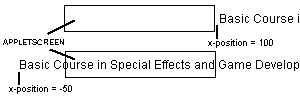
The
effect the variable "x" has on the scrolling text's
position.
You may
be wondering why I added 12 pixels to the y-position of the string?
As we said in section 2.1.4,
the text is being drawn from the base line and upwards. Since it is
a 12 dot font, I move the text by 12 pixels. Unfortunately this trick
will not work with larger fonts, but we will look at a solution later.
Look at the text scroller by clicking
here.
You
will probably notice that the text is flimmering a bit. In the upcoming
chapter 4, we will look at how you can remove this using the well
known double buffering technique.
Copyright
© 1999-2005 Mandomartis Software Company
|
